

jmkim.over-blog.com/
18 Février 2021

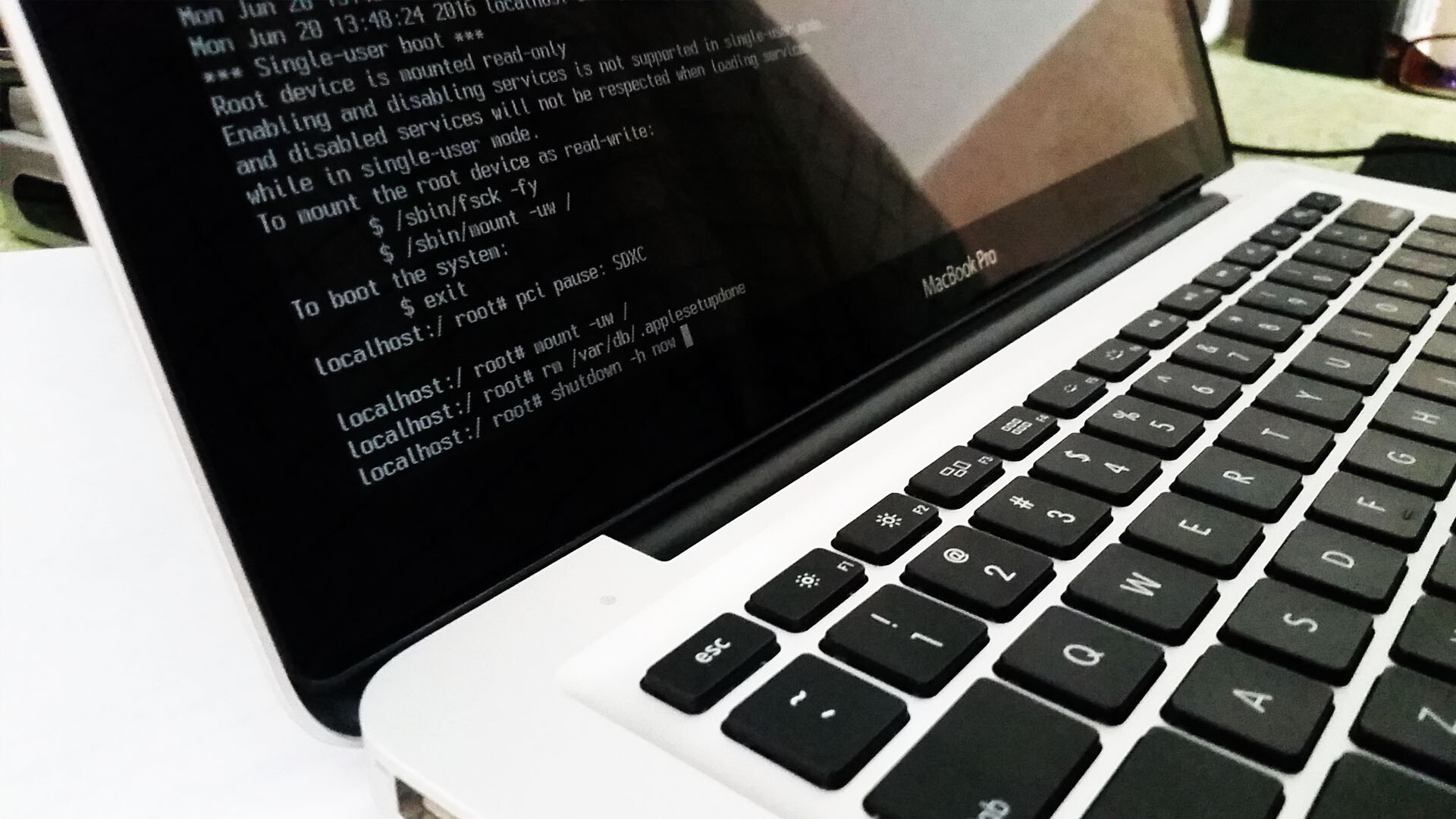
Power on or restart your Mac. At the chime (or grey screen if your chime is turned off), hold down Command+S on your keyboard to enter single-user mode. Type sh /etc/rc and press Enter/Return. Type passwd username and replace 'username' with the short name of the user account for which you'd like to reset the password.
No matter which method you use to reset administrator password on mac, it won't automatically update the password protecting the account's login keychain. Since the keychain is still protected with the old administrator password, there would be no way to get back into it unless you could update keychain password or create new keychain.
Probably you are just prompted to do that at startup after Mac admin password reset, such as on Yosemite, or constantly asked to enter the keychain password after Mac login. Regardless of which happens, resetting keychain password would help you access Keychain again.
After you log into Mac with new administrator password, follow the steps below.
1. Open Keychain Access from Finder> Applications Utilities, and choose Keychain AccessPreferences from top menu.
2. In newer versions of Mac OS X, such as on Yosemite, you will see a button Reset My Default Keychain under the General pane.
3. Click it and enter the new login password in Password field to create new keychain. Hp mini scanner.
Note: If you have no such button, choose EditKeychain List (Command + Option + L), select the login keychain, and click the minus button to delete it.
4. Quit Keychain Access and restart Mac. A new login keychain will recollecting and storing the passwords for Wi-Fi networks, email accounts, Web sites, and other logins as they occur.
If you cannot work with Keychain Access because of something like Messages Agent constantly asking for the forgotten login keychain password, you can use command line to reset Keychain password in single user mode.
1. Restart Mac and hold on Command + S to enter single user mode.
2. After you are prompted to enter a command-line after numerous lines of status messages, type this command to mount the root Mac OS X drive as writable.
mount -uw /
3. Delete that account's login keychain.
rm /Users/shortname/Library/Keychains/login.keychain
Note: If you are not sure the shortname, please confirm it with command 'ls /Users' at first.
4. Reboot Mac by command 'reboot'.
After Mac starts, you should have created a new keychain on Mac.
1. Click Update Keychain Password and enter the old password at startup, or continue login and enter old password when you are asked.
2. Open Keychain Access and right click on login, and choose the option Change Password for Keychain 'Login' from pop-up menu.
3. Enter the old password in 'Current Password' field and new password in 'New Password' box. Verify it and click OK to successfully change keychain password.
Related Articles:
El Capitan 10.11.4, 13', mid 2009; Model MacBook Pro; Identifier: MacBookPro5,5; Processor Intel Core 2 Duo; Processor Speed: 2.53 GHz
Number of Processors: 1; Total Number of Cores: 2; L2 Cache: 3 MB; Memory: 4 GB; Bus Speed: 1.07 GHz; Boot ROM Version: MBP55.00AC.B03.
Hard Drive: 240GB, Solid State SATA Drive.
Problem: Since purchase in '09, I am the only administrator and have always had the same pw for administrator access. That pw no longer works! Perhaps resetting the administrator password would give me access? I recently put in the listed hard drive, and downloaded to it from the old hard drive; all passwords work [i.e. including iCloud, Apple ID, etc.], but not Administrator pw. Can I use KAPPY'S post of May 10,2013 @ 3:48PM? Or is there another for my iOS? Have not taken any steps to reset the administrator pw. Thanks
MacBook Pro, OS X El Capitan (10.11.4), 13', mid-2009
Posted on May 1, 2016 7:10 AM


/image%2F6289966%2F20210221%2Fob_8b1e92_makerbot-bundle-beta.jpeg)
/image%2F6289966%2F20210221%2Fob_3fc2e5_alex-mace-linkedin.jpeg)
/image%2F6289966%2F20210221%2Fob_733d71_fortnite-apk-launcher.jpeg)
/image%2F6289966%2F20210221%2Fob_26e4d7_nintendo-customer-service-website.jpeg)